




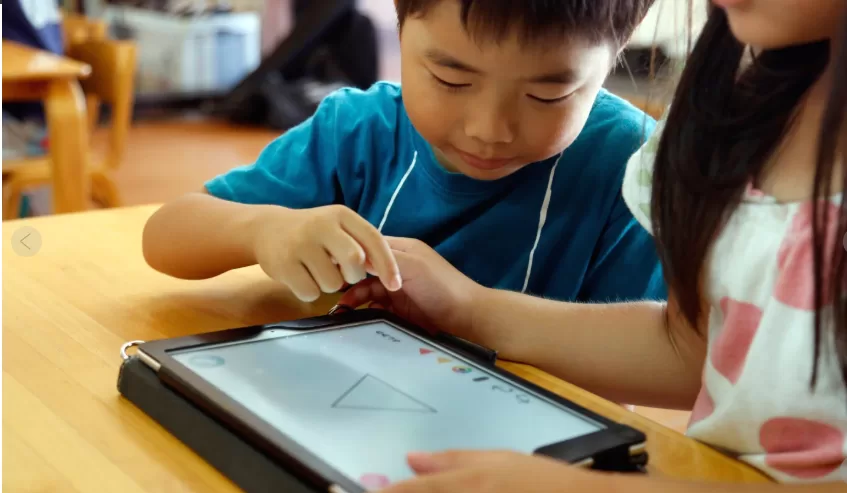
Tablets and computers have become crucial school supplies for many students. But the same devices children use to read text, write essays, solve math problems or research history projects can also offer distractions in the form of games, social media and web browsing.
It can be a challenge for parents to figure out how to help children stay focused when using these devices. That can be especially complicated with school-managed devices, where parents may have limited control over settings and restrictions.
Helpful options can include using built-in tools and settings on devices, creating routines and introducing time-management techniques.
Here are some tips for parents to help children stay on task.
The strategies parents choose may depend on whether their children are working on their own devices or ones issued and managed by schools.
Parents have more control over personal tablets or computers, and are able to restrict pop-up notifications from programs, block websites or remove apps entirely. But school-issued devices often come with preloaded software and apps, and schools might manage those devices’ settings.
Parents can talk with school administrators about what controls and restrictions are already in place and what options may be available to families concerned about screen time. Parents can also ask whether assignments or homework can be completed on paper. But reducing students’ use of technology entirely can also involve tradeoffs, particularly when some tools offer individualized instruction or help students develop technology skills increasingly expected in the workforce.
In some cases, schools are giving parents additional tools to monitor and manage devices outside of school hours. Battle Ground Public Schools in Washington, for example, introduced overnight login restrictions last year for elementary and middle school students on school-issued Chromebooks, while also allowing exemptions for some families. The restrictions were put in place as a result of parent concerns about device usage late at night and possible interruptions to sleep.
Students can be distracted by notifications that pop up from apps, messages and other services. One simple way to quiet those interruptions is to put up a digital Do Not Disturb sign.
Apple devices, including MacBooks, have focus modes that let users silence some or all notifications, calls and texts. Do Not Disturb is one of the preset modes, and users can also set up their own. On Android devices, a standalone Do Not Disturb feature does the same thing while a separate focus mode, available through Digital Wellbeing in settings, can pause selected apps and gray out their icons so they are harder to open.
Parents can also use built-in controls on Apple and Android devices to regulate screen time, either on their own phone or on a child’s linked device. Depending on the device and how it is set up, parents can restrict access to categories of apps, such as games or entertainment, or set a daily time limit for an individual app.